
Call tool node
Call tool node is used to trigger back-end logic via customer-defined tools.
The tool may interface external systems via RESTful APIs or Model Context Protocol (MCP). Refer to Tools for additional information.
LLM is used determine tool parameters and optionally extract variables from tool response.
As an alternative, when you don’t need a reusable named tool, you may define the REST call inline on an API request node instead.
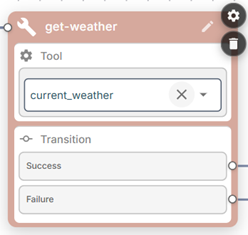
Transitions
Call tool node has two transitions – for successful and failed tool execution correspondingly.
You will typically want to wait for tool response before proceeding to the next node. This way you can differentiate between successful and unsuccessful tool execution, consume tool response in next conversation node or extract variables from it.
Alternatively, you may disable Wait for response in call tool node settings. In this case tool will be executed in the background and its response will not be available. Use this mode when you need to update external systems about some events and don’t want to stall the conversation.
Extract variables
Conversation node may be optionally configured to extract variables from the tool’s response. To enable this functionality, turn on Extract variables in node settings. After applying the new configuration, the “Extract variables” section will be added to the node card. Use it to configure the variables extraction.
For each variable you need to define name, type and description. Make sure to provide meaningful description, as it is used by LLM to populate the variable’s data.
Note that you may discard the response after extracting variables from it, therefore shrinking the context and reducing the agent runtime costs.
Using jq or JMESPath statements
If your tool returns JSON data, you may extract variables from it using jq (JSON query) or JMESPath statements. Compared to the standard variables extraction method that uses LLM prompting, this is much faster and requires no LLM involvement.
You may specify the statement in the variable’s Description field; a statement that starts with . is evaluated as jq, anything else as JMESPath. For example:
- Name:
user_name - Type:
string - Description:
.data.user_name
You may use complex statements if needed. For example the following looks up array element by username attribute and extracts data from its phone attribute:
.[] | select(.username == "{user_name}") | .phoneYou may also reference existing variables in your statements, these will be expanded with real values prior to statement evaluation. The above example demonstrates this by referencing the {user_name} variable.
JMESPath statements can use the from_utc() and to_utc() helper functions, which convert timestamps to / from the timezone given by the timezone variable.
Capturing complete tool response
You may use a special {} syntax in variable description to capture the complete tool response.
For example:
- Name:
users_list - Type:
string - Description:
{}
You can later extract data from this variable using jq or JMESPath syntax, see Using jq or JMESPath statements in the Extract variables node for a detailed description.
Call tool node settings
- Wait response – Wait for tool response before proceeding to next node.
- Discard response – Discard tool response from the conversation history. If you enable this, you would typically configure variables extraction via the option below.
- Extract variables – Extract variables from tool’s response.
- Custom LLM – You may define custom large language model (primary and fallback), temperature and max output tokens to be used for the specific call tool node.
- Global node – Enables transition to this node from any other node in the conversation flow.